What are notifications and follow
Overview
Adora can keep you informed about what's happening across your product without you having to check the app. You can receive updates through Slack or email, get organization-wide digests on a schedule, and follow specific journeys, screens, or collections to be notified when sessions or insights change.
This article covers connecting Slack, setting up organization-wide digests, and following individual objects.
Slack integration
Connecting your Slack workspace lets Adora deliver notifications and digests to a Slack channel of your choice.
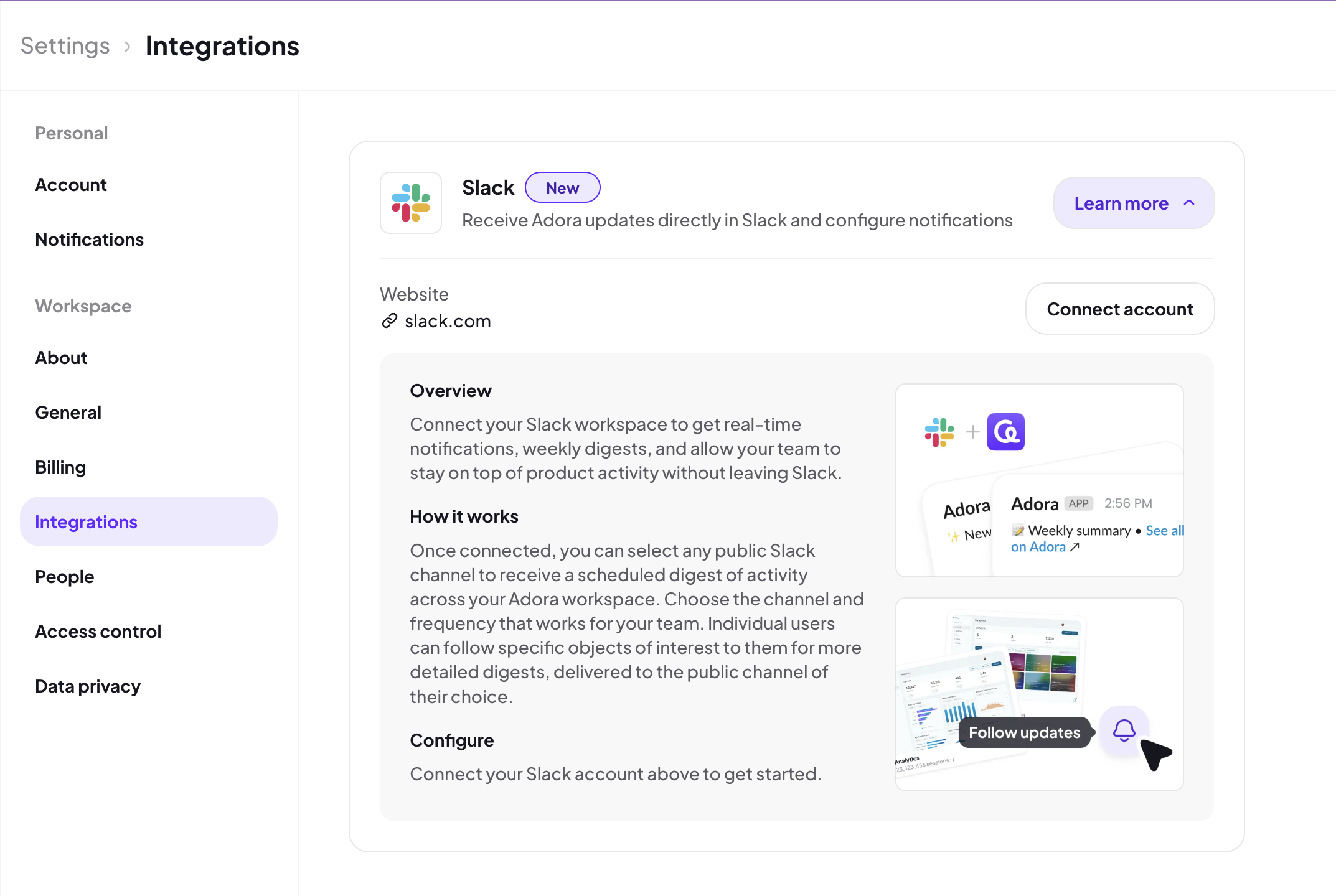
Go to the Integrations section in your settings page.
Expand the Slack component.
Click Connect account.
Follow the instructions on the Slack connection page to authorize Adora and select the workspace and channel you want to use.
Once connected, Slack becomes available as a delivery option for organization-wide digests and any follows you set up. You’re now able to select which channels you’d like to receive the digest and also which channels can receive followed notifications.
Note: As of now you can only select channels that are public.
Organization-wide digests
Organization-wide digests give you a regular summary of how your entire product is performing. Each digest includes:
Total incoming sessions
Impactful cohorts and properties
Insights that have surfaced recently
Send digests to Slack
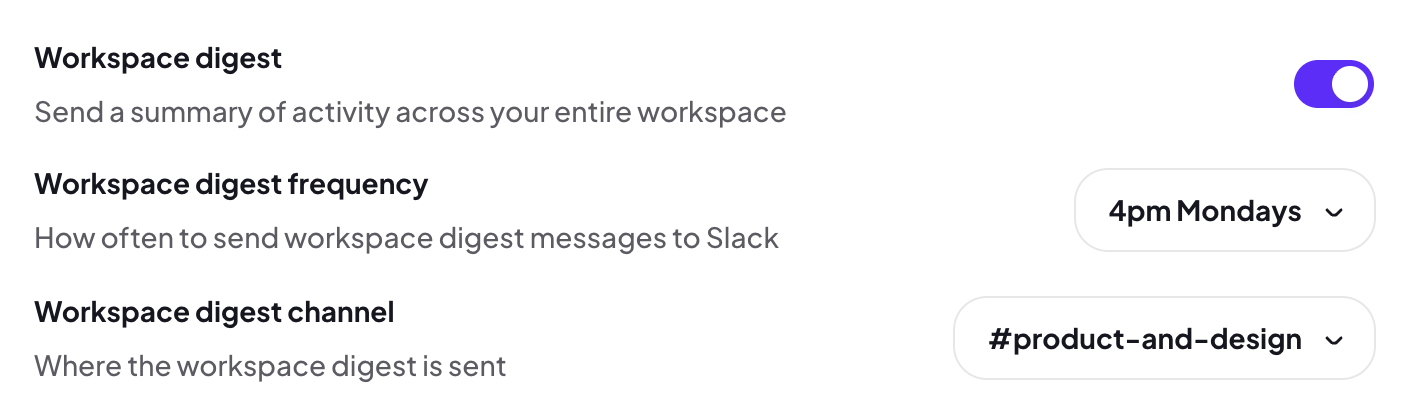
To send digests to your organization's Slack channel, open the Slack integration area in your settings page and turn on organization-wide digests for the connected channel.
Send digests to your email
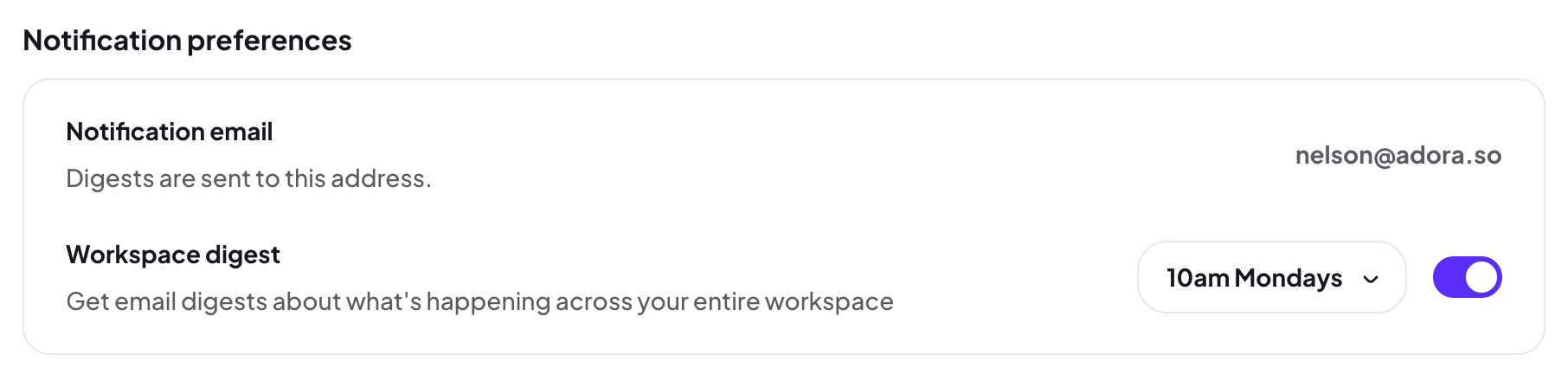
To send digests to your own email instead, go to the Notifications section in your settings page and enable email digests for yourself.
Follow journeys, screens, and collections
Following an object lets you receive updates whenever new sessions or insights show up for it.
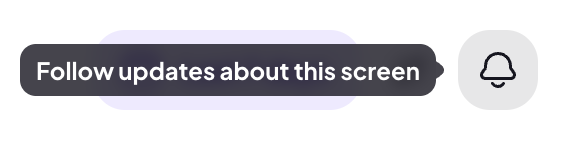
You'll see follow icons on:
Journey cards and journey pages
Screen cards and screen pages
Collection cards and collection pages
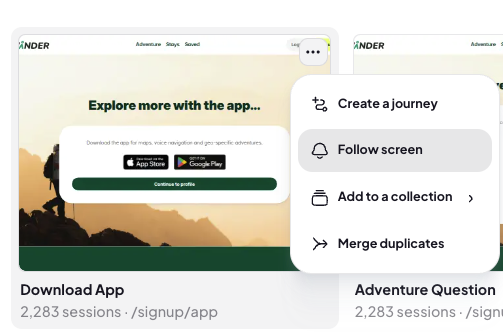
Click the follow icon on any of these to start following and open the customization menu for further tweaking.
Choose your delivery schedule
When you follow something, you can choose how often you want to be notified:
Daily, weekly, or monthly scheduled notifications.
Real-time notifications, which detect rising trends as they happen.
Choose what's included
You can also pick what kind of updates you want to receive:
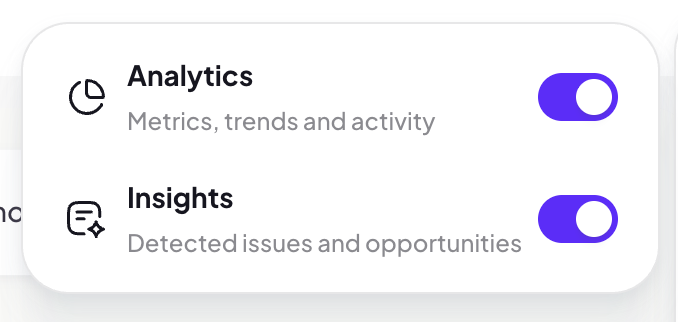
Analytics only — session counts and similar metrics.
Insights only — newly surfaced insights for the followed object.
Both — analytics and insights together.
Note: Collections currently provide analytics data only.
Manage your notifications
To see and manage everything you've set up in one place, go to the Notifications section in your settings page.
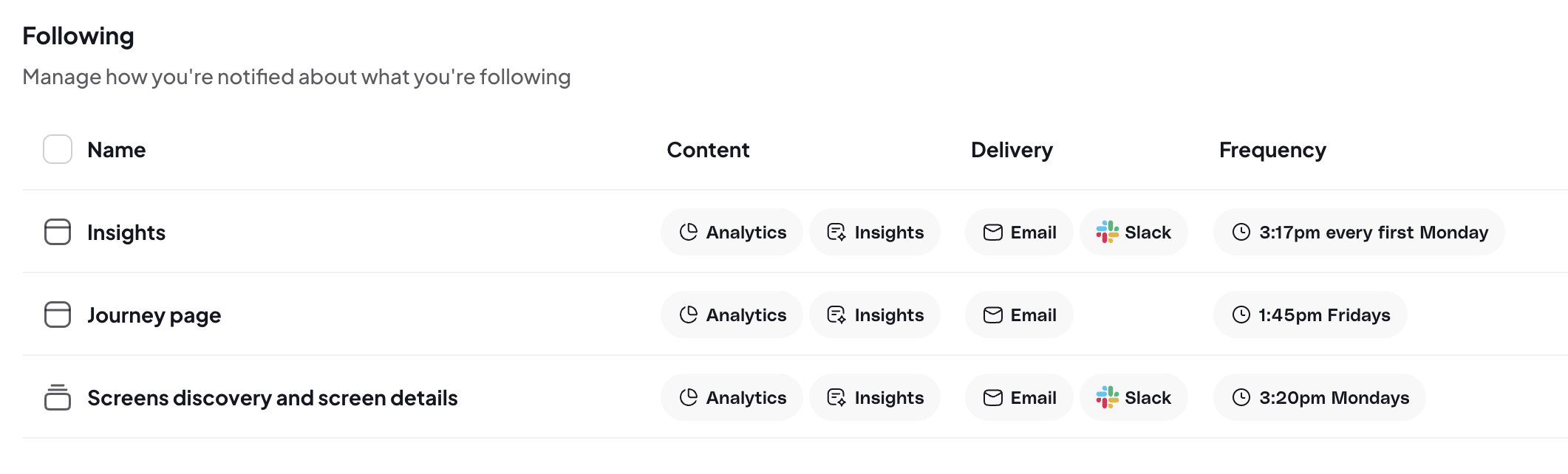
From here you can review all your follows and digests, change their schedule or content, and turn them off.